AI Photo Editing Prompts: 25+ Best Free Prompts to Copy and Use in 2026
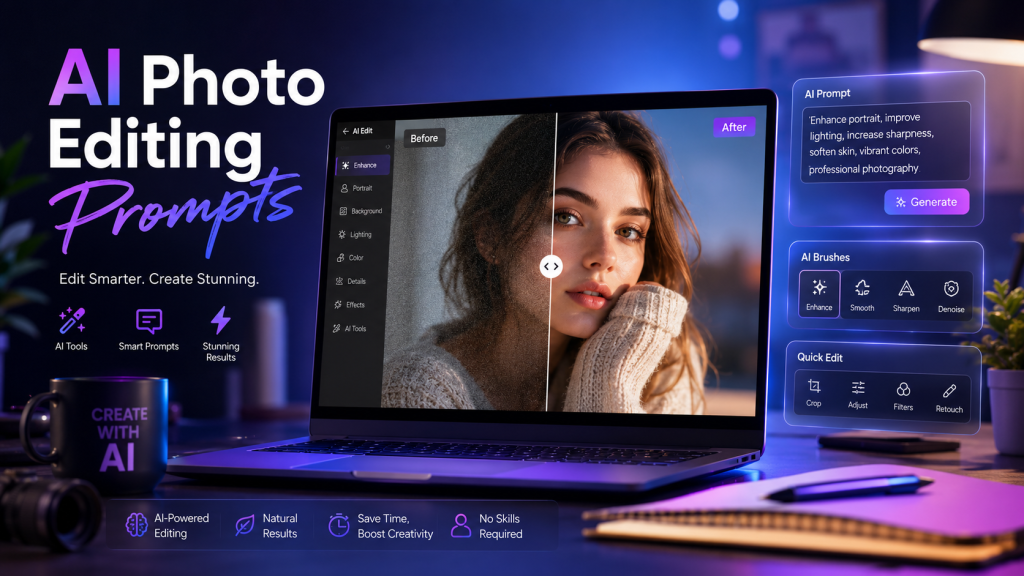
Ever taken a photo that looked great in your head but came out flat on your phone? You are not alone. Most of us want studio-style pictures without learning Photoshop. The good news is that AI photo editing prompts can do the editing for you in seconds.
AI photo editing prompts are short written instructions you give to AI tools like ChatGPT, Gemini, or Midjourney to edit your photos automatically. You upload your picture, paste the prompt, and the AI image generator returns a finished photo in 10 to 30 seconds. No editing skills needed. No paid software either.
In this guide, you will get 25+ ready-to-copy AI photo editing prompts, the best AI tools to use them with, and simple tips to write your own. By the end, you will know how to edit any photo like a pro, even if you are starting from zero.
What Are AI Photo Editing Prompts?
AI photo editing prompts are written commands that tell an AI photo editor how to change your image. Think of them like recipes. You give the AI a picture and a recipe, and it cooks up a new version for you.
For example, you can ask the AI to remove the background, add cinematic lighting, or change your outfit to a black suit. The AI reads your words and applies the edits. This works because tools like ChatGPT and Midjourney are trained on millions of photos.
Text-to-Image vs Image-to-Image Editing
There are two main types of prompts you should know.
Text-to-image means you describe a photo from scratch, and the AI creates it for you. You do not upload any image. You just type what you want, and the AI builds it.
Image-to-image editing means you upload a real photo, and the AI edits it based on your prompt. This is the most popular type for selfies, portraits, and product photos. Most of the prompts in this guide use image-to-image editing.
The 5 Parts of a Working AI Photo Editing Prompt
Every good prompt has five clear parts. First, the subject (you, a product, a pet). Second, the style (cinematic, anime, vintage, realistic). Third, the lighting (golden hour, studio, night flash). Fourth, the action (remove background, add bokeh, fix blur). Fifth, the quality (HD, 4K, aspect ratio).
Mix these five parts together, and the AI knows exactly what to do. Skip one, and the AI might guess wrong. That is why prompt engineering has become its own small skill in 2026.
How Do AI Photo Editing Prompts Work?
The process is simple. You open an AI tool, upload your photo, paste a prompt, and hit enter. The AI reads your text, looks at your image, and creates a new edited version.
Step-by-Step Process Behind the Scenes
Behind the screen, the AI breaks your prompt into pieces. It looks for keywords like “remove background,” “cinematic lighting,” or “professional headshot.” Then it matches those words to patterns it learned from training data. After that, it builds the new photo pixel by pixel.
The better your prompt, the better your result. Vague prompts give vague photos. Clear prompts give sharp, useful photos. For example, “make this nice” gives you something random. But “remove background, add soft white studio backdrop, keep face 100% match” gives you a clean headshot.
Why Face Matching Matters in AI Image Editing
One common problem with AI image editing is face drift. The AI sometimes changes your face by accident, and you end up looking like a stranger. To fix this, add the line “keep the original face 100% match” at the end of your prompt. This single line saves hundreds of bad edits.
Best AI Tools for AI Photo Editing Prompts in 2026
Not every AI tool is built the same. Some are better for prompt writing, others for actual photo editing. Here are the top picks worth knowing.
ChatGPT for AI Photo Editing Prompts
ChatGPT is the best tool to write and test your prompts. It also creates images directly through DALL·E. You can chat with it like a friend, ask it to fix a prompt, or rewrite it for a different photo. Free users get a few image generations per day, while paid users get unlimited.
Midjourney for Cinematic Photo Prompts
Midjourney makes some of the most beautiful AI photos in the world. It runs on its own website and works best for cinematic photo prompts and realistic photo prompts. The downside is that it is paid only, and beginners might find it tricky at first.
Google Gemini for Realistic Face Matching
Gemini is Google’s AI tool, and its image model is famous for face matching. If you want your real face to stay the same in edited photos, Gemini is the top pick. The free plan is generous, which makes it perfect for daily use.
Adobe Firefly for Professional Editing
Adobe Firefly is built into Photoshop and works great for serious editors. It handles object removal, background removal, and image retouching better than most. Since it is trained on licensed images, the output is safe to use for business and ads.
Canva AI for Beginners and Social Media
Canva AI is the easiest tool for beginners and social media creators. You can remove backgrounds, change outfits, and add effects with one click. It is also great for Instagram photo prompts and quick edits.
Other Tools Worth Trying
Other strong picks include DALL·E, Photoshop AI, Luminar Neo, Fotor AI, Picsart AI, Leonardo AI, Runway ML, and Stable Diffusion. Pick one based on your need. For free quick edits, try Canva AI or Gemini. For pro work, go with Adobe Firefly or Midjourney.
25+ Best AI Photo Editing Prompts to Copy and Use
Here are the top AI photo editing prompts you can copy right now. Paste them into ChatGPT, Gemini, or any AI tool along with your photo. Each one is tested and works.
Professional Headshot Prompt for LinkedIn
Use this when you need a clean LinkedIn or resume photo.
Create a professional studio headshot from my uploaded photo. Use a soft white background, gentle studio lighting, and sharp focus on the face. Keep the original face 100% match. Add subtle skin smoothing, fix any blur, and make the eyes look clear. Output in 4K quality, 4:5 aspect ratio.Cinematic Portrait Prompt for Instagram
This one gives you that movie-poster look.
Turn my uploaded photo into a cinematic portrait. Add warm golden hour lighting from the side, soft bokeh in the background, and shallow depth of field. Keep my face, hairstyle, and outfit exactly the same. Apply rich color grading with teal shadows and orange highlights. Render in 8K, ultra-realistic, 4:5 ratio.Background Removal Prompt for Product Photos
Perfect for ecommerce product images.
Remove the background from my uploaded photo. Replace it with a plain white studio background. Keep the subject sharp and the edges clean. Do not change the subject's face, clothes, or pose. Output in HD, ready for ecommerce or social media use.Background Change Prompt for Travel Photos
Swap your boring background for a beach or city.
Change the background of my uploaded photo to a sunset beach with soft waves and warm golden light. Keep my face, hair, outfit, and pose exactly the same. Add natural lighting that matches the new background. Output in HD, 4:5 ratio.Object Removal Prompt for Clean Photos
Remove people or items from any photo.
Remove all unwanted objects and extra people from my uploaded photo. Keep only the main subject. Fill the empty space with a natural extension of the background. Do not change the subject's face, outfit, or pose. Output in HD quality.Old Photo Restoration Prompt
Bring family photos back to life.
Restore this old photo. Fix scratches, tears, and fading marks. Sharpen the faces, balance the colors, and add natural skin tones. Keep the original look and feel of the photo. Do not change clothes, hairstyles, or expressions. Output in high resolution.Anime Style Prompt for Selfies
Turn your selfie into an anime character.
Convert my uploaded photo into an anime art look. Use bold outlines, soft shading, and clean colors like modern Japanese anime. Keep my facial features, hair, and outfit recognizable. Add a soft pastel background. Output in 4:5 aspect ratio, HD quality.Vintage Photo Prompt for a 90s Film Look
For that old film camera vibe.
Edit my uploaded photo into a vintage 90s film look. Add warm tones, slight film grain, and faded shadows. Keep my face and outfit the same. Apply soft contrast and a color shift toward yellow and brown. Output in 4:5 ratio, realistic vintage feel.Outfit Change Prompt for Virtual Try-On
Try a new look without shopping.
Change the outfit in my uploaded photo to a black formal suit with a white shirt. Keep my face, hair, pose, and background exactly the same. Make the fabric folds look natural and the fit look tailored. Output in HD, realistic photo quality.Wedding Photo Prompt for Couples
Make your wedding photos magazine-ready.
Edit my uploaded wedding photo with a romantic cinematic look. Add soft warm lighting, gentle bokeh in the background, and rich color grading. Keep both faces, outfits, and poses exactly the same. Apply subtle skin smoothing and clear eye enhancement. Output in 8K, 4:5 ratio.Real Estate Photo Prompt for Listings
Make property photos pop.
Enhance my uploaded real estate photo. Brighten the room, fix any blur, and balance the lighting. Make the walls look clean and the colors look natural. Replace any dull sky outside the windows with a bright blue sky. Output in HD, realistic photo quality.Fashion Editing Prompt for Models
Build a fashion magazine cover.
Edit my uploaded photo into a high-fashion editorial look. Add studio lighting, a clean grey background, and sharp focus. Keep my face, outfit, and pose exactly the same. Apply rich color grading and subtle skin retouching. Output in 8K, 4:5 ratio.Realistic Photo Prompt with Natural Lighting
The all-rounder prompt for any photo.
Edit my uploaded photo with natural daylight, soft shadows, and clean color balance. Keep my face, outfit, and background exactly the same. Sharpen the details, fix any blur, and apply gentle skin smoothing. Output in HD, ultra-realistic, 4:5 ratio.How to Write AI Photo Editing Prompts That Work
Writing your own prompts is easier than you think. Follow this five-step method, and you will get strong results almost every time.
Step 1: Define Your Subject
Start by telling the AI what is in the photo. Is it you, a product, a couple, a pet? The clearer you are, the better the output.
Step 2: Pick a Style
Cinematic, anime, vintage, realistic, or studio. Pick one and write it into your prompt. Mixing two styles often confuses the AI, so stick to one.
Step 3: Set the Lighting
Lighting changes everything in a photo. Golden hour, studio light, night flash, or soft window light all give different moods. Choose the one that fits your photo’s purpose.
Step 4: List the Actions
Tell the AI what to do. Remove the background. Add bokeh. Fix the blur. Change the outfit. Be specific, because the AI does not read minds (yet).
Step 5: Lock the Face and Set the Quality
Add “keep the original face 100% match” so your face stays the same. Then add “HD” or “4K” and the aspect ratio you want, like 4:5 for Instagram or 9:16 for Reels.
Put all five steps in one paragraph, and you have a working prompt. Test it. If the result is off, change one part and try again. Most photos look great by the second or third try.
Top Features You Can Get With AI Photo Editing Prompts
AI photo editing prompts can do almost anything a Photoshop pro can do, but in seconds. Here are the most popular features people use every day.
Remove Background and Change Background
The easiest and most common edit. Just say “remove the background and replace it with a plain white studio backdrop.” AI tools like Canva AI and Adobe Firefly handle this in one click.
Object Removal and Fixing Blurry Photos
Got a photobomber? Tell the AI to remove them. Got a blurry photo? Tell the AI to sharpen it. Tools like Photoshop AI and Fotor AI are best for these tasks.
Skin Smoothing, Teeth Whitening, and Eye Enhancement
Add lines like “apply gentle skin smoothing, whiten teeth, and enhance eye clarity” to any portrait prompt. Use it lightly, because too much smoothing makes the photo look fake.
Image Upscaling and HDR Effect
If your photo is low-res or too dark, AI can fix that. Use “upscale to 4K and apply HDR effect” to bring out details and balance shadows.
Color Grading and Bokeh Effect
Want that cinema look? Add “rich color grading with teal shadows and orange highlights, soft background bokeh.” This single line takes a flat photo to a pro level.
Are AI Photo Editing Prompts Free?
Many AI photo editing prompts are free to use. ChatGPT, Gemini, and Canva AI give you free daily credits. For unlimited photo edits, you will need a paid plan, which usually costs between $10 and $30 per month.
If you are just starting out, stick with free tools like Gemini and Canva AI. They give you enough credits to test prompts and learn the basics. Once you are serious, upgrade to ChatGPT Plus, Midjourney, or Adobe Firefly for unlimited use and better quality.
FAQs
What are AI photo editing prompts?
AI photo editing prompts are short written instructions you give to AI tools to edit your photos. You upload an image, type the prompt, and the AI does the editing.
How do AI photo editing prompts work?
You upload a photo to an AI tool, paste a prompt, and hit enter. The AI reads the prompt, looks at your photo, and creates a new edited version in seconds.
Which AI tool is best for photo editing prompts?
ChatGPT and Gemini are best for free, everyday use. Midjourney is best for stunning visuals. Adobe Firefly is best for pro and commercial work.
Can AI remove objects from photos?
Yes. Tools like Photoshop AI, Picsart AI, and Canva AI can remove people, items, or logos from your photos in seconds.
Can AI improve image quality?
Yes. AI can sharpen blurry photos, upscale low-resolution images, and clean up noise. Fotor AI and Luminar Neo are popular for this.
Are AI photo editing prompts free?
Many are free. ChatGPT, Gemini, and Canva AI give free daily credits. For unlimited use, paid plans cost $10 to $30 per month.
Final Thoughts
AI photo editing prompts are the easiest way to get pro-level photos without learning hard software. Pick any prompt from above, drop it into ChatGPT or Gemini with your photo, and you are done. Save the ones that work for you, and build your own prompt library over time. The more you practice, the sharper your results will get.