WhatsApp DP AI Photo Editing Prompt 2026: Free Copy Paste Prompts
A WhatsApp DP AI photo editing prompt is the fastest way to get a clean, eye-catching profile picture without any editing skill. You upload one clear photo, paste a prompt into ChatGPT or Google Gemini, and the AI creates a polished DP while keeping your real face. This guide gives you free copy-paste prompts, a simple step-by-step method, and tips to make your WhatsApp profile picture stand out.
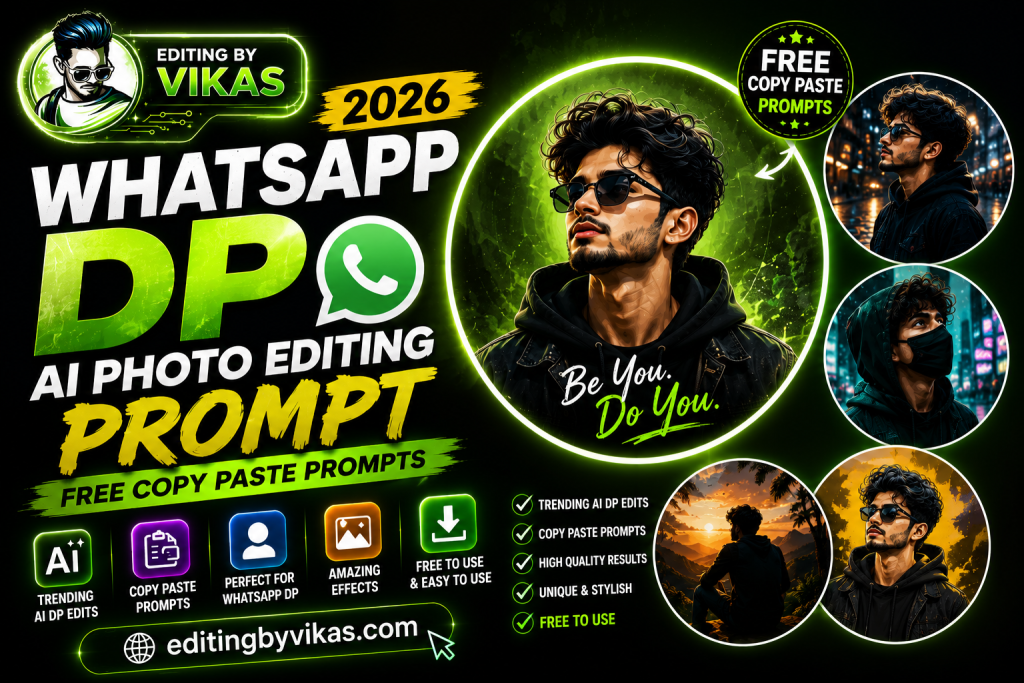
Your WhatsApp DP is the first thing people see when they open a chat with you. A sharp, well-styled profile picture makes a strong impression, whether it is for friends, family, or work contacts. The problem is that most people do not have a good photo ready, and editing one by hand takes time and skill. AI solves this in seconds. With the right prompt, an ordinary selfie becomes a clean, professional-looking DP.
What Is a WhatsApp DP AI Photo Editing Prompt?
A WhatsApp DP AI photo editing prompt is a short written instruction you give to an AI image tool. You upload your photo, paste the prompt, and the AI produces a new, edited version designed to work well as a profile picture. Your face stays the same. What changes is the background, the lighting, the style, and the overall polish.
Because a WhatsApp DP is small and often round, the best DP prompts focus on a clear face, a simple background, and good lighting. The prompts in this guide are written specifically for that, so your profile picture looks sharp even at a small size.
Why a Good WhatsApp DP Matters
People judge quickly. A blurry or dark DP can make a chat feel less trustworthy, while a clean, bright profile picture feels friendly and put-together. For business or freelancing, a professional DP builds instant credibility. For personal use, a stylish DP simply looks good and gets noticed. A small change to your profile picture can change how people see you, and AI makes that change effortless.
What You Need Before You Start
Everything you need is free. There are only two requirements, and you almost certainly have both already.
A Free AI Tool
You need ChatGPT or Google Gemini. Both are free and both work on phones and computers. Gemini keeps your real face the most accurate, which matters a lot for a profile picture. ChatGPT is excellent when you want to add text or a specific style. Either one works well for a DP.
One Clear Photo
You need a single clear photo of your face. This is the most important part, because the AI builds on what you give it. A sharp, well-lit selfie produces a sharp, clean DP, while a blurry one produces a messy result. A simple front-facing photo taken in good light is perfect.
How to Make a WhatsApp DP With AI: Step-by-Step Guide
The process is simple and the same steps work for every prompt in this guide. Follow them once and you can make any DP you want.
Step 1: Open Your AI Tool and Log In
Open ChatGPT or Google Gemini in your browser or app. If you do not have an account yet, here is the quick login guide.
Login Guide for ChatGPT
Go to the ChatGPT website or open the app. Tap Sign Up if you are new, or Log In if you already have an account. You can sign up free with a Google account, an Apple account, or an email address. Once you are logged in, you are ready to upload a photo.
Login Guide for Google Gemini
Open the Gemini website or app. Sign in with your Google account, which most phone users already have. If you do not have a Google account, create one free in a minute. Once signed in, you can upload your photo and paste a prompt.
Step 2: Upload Your Photo
Tap the image or upload icon and select your clear photo. Wait for it to finish loading before you continue.
Step 3: Copy and Paste a Prompt
Pick a prompt from the boxes below, tap Copy Prompt, and paste it into the tool along with your photo. Send it and wait a few seconds for the AI to create your DP.
Step 4: Refine and Save
If the first result is not perfect, run it again. Each attempt is a little different, so two or three tries give you the best DP to download and set on WhatsApp.
Free WhatsApp DP Prompts (Copy and Paste)
Here is the full collection. Each box is click-to-copy, and every button has a different colour so they are easy to tell apart. Pick a style, copy it, and paste it into your AI tool with your photo.
1. Clean Professional DP
A crisp, business-ready profile picture with a simple background. Perfect for work and freelancing contacts.
Edit this photo into a clean professional profile picture. Add a soft neutral studio background, even flattering lighting, sharp focus on the face, and a polished look suitable for a WhatsApp DP. Keep my face 100% match and natural. High detail, 1:1 square ratio.
2. Cinematic Aesthetic DP
A moody, stylish DP with cinematic lighting for a premium, eye-catching profile picture.
Turn this photo into a cinematic profile picture. Add soft dramatic lighting, a slightly blurred dark background with gentle bokeh, rich colour tones, and a premium mood. Keep my face 100% match and sharp. High detail, 1:1 square ratio.
3. Bright and Friendly DP
A warm, approachable DP with bright natural light, great for friends and family chats.
Edit this into a bright, friendly profile picture. Add soft natural daylight, a clean light background, warm cheerful tones, and a fresh clear look. Keep my face 100% match and natural. High detail, 1:1 square ratio.
4. Attitude Style DP
A bold, confident DP with cool tones and a stylish edge, popular for a standout profile.
Turn this photo into a bold attitude profile picture. Add cool cinematic tones, moody lighting, a subtle stylish background, and a confident sharp look. Keep my face 100% match. High detail, 1:1 square ratio.
5. Minimal Solid Colour DP
A modern DP on a clean solid colour background, simple and striking at a small size.
Edit this into a modern minimal profile picture. Place the subject on a clean solid colour background in a soft pastel or deep tone, with even lighting and sharp focus on the face. Keep my face 100% match and natural. High detail, 1:1 square ratio.
Tips for the Best WhatsApp DP
A few small habits make your DP look far more professional. These come from testing many edits.
Use a Sharp Photo
A clear starting photo is the single biggest factor. The AI cannot fix a blurry image, so choose a sharp, well-lit selfie for the best result.
Keep the Face Line
Every prompt ends with a face-match instruction. Keep it, so the AI does not change your features and turn your DP into someone who does not look like you.
Keep the Background Simple
Since a DP is small and round, a clean background reads best. The prompts above favour simple backgrounds for exactly this reason.
Run It a Few Times
Each run gives a slightly different result. Try two or three and pick your favourite.
Common Mistakes to Avoid
Avoid these and your DP will come out clean almost every time. First, do not use a dark or blurry photo, as the AI has nothing good to build on. Second, do not choose a busy background prompt for a DP, since detail is lost at a small size. Third, do not expect the first try to be perfect, because a couple of attempts always help. Fourth, never remove the face-match line, or the AI may change your face.
Take It Further
Once your DP is ready, you can make matching content for the rest of your social media. If you post on Instagram, our Instagram post and story prompt guides give you feed-ready and story-ready looks. For a sharper base image before editing, try the HD photo quality prompts. And to explore dozens more styles, visit our main AI photo editing prompts hub, which explains the basics and links to every prompt collection on the site.
Frequently Asked Questions
Are these WhatsApp DP prompts free?
Yes. Every prompt is free, and the AI tools you use them with, ChatGPT and Google Gemini, have free versions that are enough to make several DPs.
Which AI tool is best for a WhatsApp DP?
Gemini keeps your real face the most accurate, which is ideal for a profile picture. ChatGPT is great if you want a specific style or added text. Both work well.
Will the AI change my face?
Not if you keep the face-match line at the end of each prompt. Using a clear photo also helps the AI keep your features accurate.
What size should a WhatsApp DP be?
A 1:1 square image works best, because WhatsApp crops your DP into a circle. All prompts here are set to 1:1 for that reason.
Can I do this on my phone?
Yes. Everything works on Android and iPhone. You only need a free AI app and one clear photo.
Make Your WhatsApp DP Today
A great WhatsApp DP takes just a few minutes with the right prompt. Pick a style, grab a clear photo, and let the AI create a clean, standout profile picture that makes a strong first impression. Save this page so you can refresh your DP whenever you like, and explore our other guides to build a matching look across all your social media.
How AI Photo Editing Works for WhatsApp DP
It helps to understand what happens when you use an AI photo editing prompt, because it makes you better at writing and choosing prompts. When you upload a photo and paste a prompt, the AI reads your words and looks at your image together. It identifies your face and the parts you want to keep, then rebuilds the background, lighting, and style around them based on your description. The clearer your prompt, the more precisely it can do this.
This is why the small details in a prompt matter so much. Words like soft lighting, blurred background, warm tones, and sharp focus are not decoration. They are direct instructions the AI follows. When a prompt names the lighting, the background, the mood, and the output size, the AI has everything it needs to produce a clean, intentional result rather than a random guess. Every prompt in this guide is written with those details already in place, which is why they work reliably.
The Face-Match Line Explained
You will notice every prompt ends with an instruction to keep your face 100 percent match. This is the most important part of any WhatsApp DP edit. Without it, the AI treats your entire photo as editable and often changes your face while improving the rest, leaving you looking like a slightly different person. The face-match line tells the AI to protect your features while it works on everything else. Never remove this line, and if a result ever changes your face, run it again with the line in place.
Why Results Vary Each Time
AI image tools are creative, not mechanical, so they produce a slightly different result every time you run the same prompt. This is normal and actually useful. It means you can run a prompt two or three times and choose the best version, rather than being stuck with a single output. Think of each run as a fresh take on the same idea. The more you try, the better your final WhatsApp DP image will be.
Choosing the Right Style for Your WhatsApp DP
With several prompts to choose from, it helps to match the style to your goal. Not every look suits every purpose, and picking the right one makes your image far more effective.
For a Personal Look
If you are posting for friends and family, a warm, friendly, or aesthetic style usually fits best. These looks feel natural and approachable, which is exactly what personal content should be. A soft, bright edit reads as genuine and inviting.
For a Professional Look
If your WhatsApp DP image is for work, business, or building a personal brand, a clean or cinematic style works better. These looks signal effort and credibility. A polished, well-lit image tells people you take your presence seriously, which builds trust.
For a Bold, Standout Look
If you want to grab attention and stand out, an attitude, neon, or dramatic style does the job. These bold looks are eye-catching and memorable, perfect when you want your image to be the one people stop on. Match the boldness to your personality so it still feels like you.
Getting the Most Out of Your Free AI Credits
Both ChatGPT and Google Gemini give free daily usage, and a little planning helps you make the most of it. Because each run uses some of your free allowance, it is smart to choose your photo and prompt carefully before you start, rather than running random attempts. Pick your clearest photo, choose the style that fits your goal, and then run that prompt a few times to get the best version.
If you reach your free limit for the day, simply wait until it resets, usually within a day, and continue then. You can also switch between ChatGPT and Gemini to spread your usage across both free tiers. With a little planning, the free credits are more than enough to create all the WhatsApp DP images you need without paying anything. This is one of the reasons AI photo editing has become so popular. It delivers professional results at no cost.