
How to Remove CapCut Watermark 2026 (Easy Free Guide)
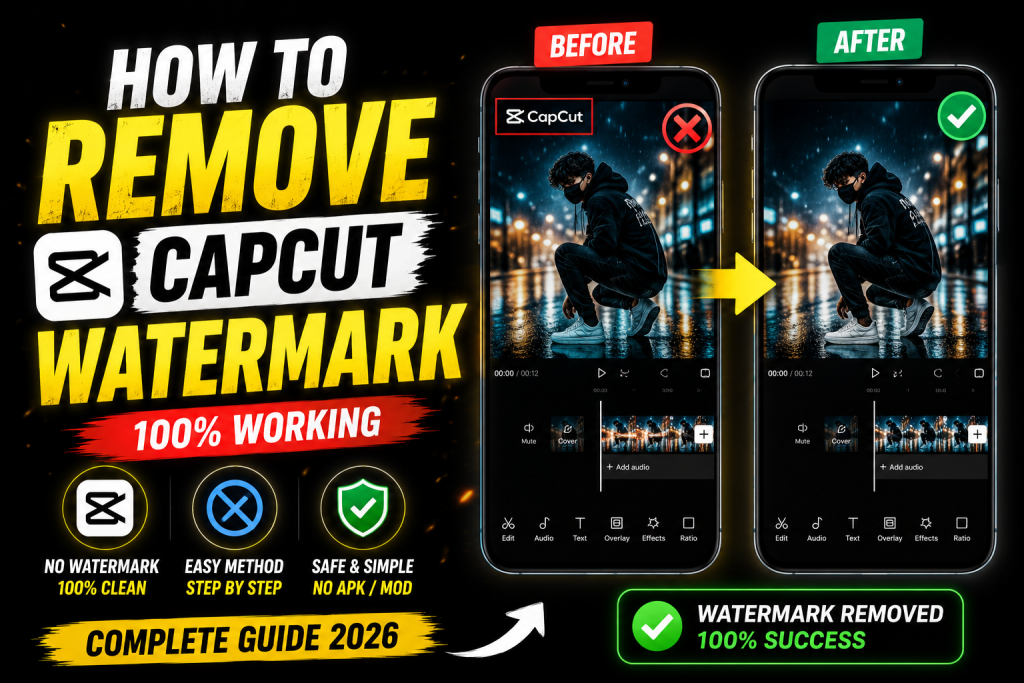
Nothing kills a professional looking reel faster than a leftover template watermark. If you want clean, brand free edits, this guide shows you exactly how to remove the CapCut watermark in 2026, whether it comes from a template or appears on export. Follow the steps below and your reels will look polished and ready for Instagram, TikTok, and YouTube Shorts.
Where the CapCut Watermark Comes From
There are two common watermarks. The first is the CapCut logo that some exports add automatically. The second is a template creator credit that appears on the final frame when you use a shared template. Both are easy to handle once you know where to look, and removing them makes your content look like your own original work.
How to Remove the Watermark From a Template
- Open your edit inside the CapCut app after applying the template.
- Scroll to the very end of the timeline, where the creator watermark usually sits on the last one or two seconds.
- Tap that clip or sticker layer and delete it, or trim the timeline so the watermark frame is cut off.
- Preview the full edit to confirm the watermark is gone.
- Export and check the final video before posting.
How to Remove the Export Watermark
Newer CapCut versions add the logo mainly when you use certain effects or the intro and outro templates. To avoid it, remove any default CapCut intro or outro clip from your timeline before export. In the export settings, look for a remove watermark option where available. If a specific effect forces a watermark, replace it with a similar effect that does not.
Best Free Tools to Help
If a watermark is baked into a clip, you can cover or crop it. Crop the frame slightly so the watermark sits outside the visible area, which works well for corner logos. For more control, rebuild the edit in VN using my VN codes, since VN exports cleanly without a forced watermark. You can also recreate the template style manually with effects from my Alight Motion shake preset.
Why a Clean Export Matters
A watermark signals low effort to viewers and can quietly reduce trust in your content. Clean reels look professional, build your personal brand, and tend to perform better because they feel original. Removing the watermark is a small step that makes a real difference to how your page is perceived, especially when you are trying to grow.
Build Watermark Free Edits From the Start
The easiest way to avoid watermark hassle is to build clean edits from the beginning. Use templates from my CapCut template links collection and remove the credit frame, or edit in VN for a naturally clean export. A velocity CapCut template and a slow motion CapCut template both export cleanly once the credit frame is trimmed. The complete routine is in my reel editing guide.
Mistakes to Avoid
Do not crop so aggressively that you cut off your subject just to hide a watermark. Do not use shady third party watermark remover sites, since many reduce your video quality or add their own logo. And always preview the full export, because a watermark sometimes hides on the very last frame.
Watermark Free Workflow for Daily Posting
If you post often, you need a routine that produces clean exports every time without extra effort. The simplest approach is to standardise on a small set of templates you trust, learn exactly where each one places its credit frame, and trim it as a habit before every export. For edits where you want zero watermark risk, build the cut in VN using my VN cinematic code, since VN exports cleanly by default. Keeping a consistent, watermark free workflow means your page always looks professional, which matters far more when you are posting several reels a week and cannot check each one slowly.
Protecting Your Own Content From Reposts
While you remove template watermarks, it is worth adding your own subtle branding so others cannot easily steal your reels. A small, semi transparent username in a corner, or a quick branded intro frame, marks the content as yours without ruining the viewing experience. This protects your work as your page grows and reposters take notice. Keep your branding tasteful and out of the way of the main action. For the complete editing routine that ties this together, follow my reel editing guide and pair it with templates from the CapCut template links hub.
Checking Your Final Export
Before you post, always watch the full export once from start to finish. Watermarks sometimes hide on the very last frame or appear only during a specific effect, so a quick review catches them before your audience does. Check the corners and the final second especially, since these are the most common spots. A thirty second review is a small price for a clean, professional reel, and it saves you from reposting later, which resets your engagement and wastes the upload.
Frequently Asked Questions (FAQ)
How do I remove the CapCut watermark from a template?
Scroll to the end of the timeline, delete or trim the creator credit frame, then export and preview the final video.
Does CapCut add a watermark to every export?
No. The logo mainly appears with certain intro, outro, or effect clips. Remove those before export to avoid it.
Is it legal to remove the watermark?
Removing the CapCut logo on your own edit is fine. For creator templates, it is good practice to still credit the original creator.
What is the easiest watermark free editor?
VN exports cleanly without a forced watermark, which makes it a strong choice for clean edits.
Quick Recap for Clean Exports
To keep every reel watermark free, learn where your templates place the credit frame and trim it before export, remove default intro and outro clips, and avoid shady remover sites that lower quality. For zero risk, edit in VN. Add your own subtle branding to protect your work as your page grows.
Final Thoughts
Removing the CapCut watermark takes seconds once you know where to look, and it instantly makes your reels look more professional. Use the steps above, build clean edits with the templates across Editing By Vikas, and post with confidence. More editing tutorials are added every week.