Velocity CapCut Template 2026 (15+ Trending Free, Smooth Slow Fast)
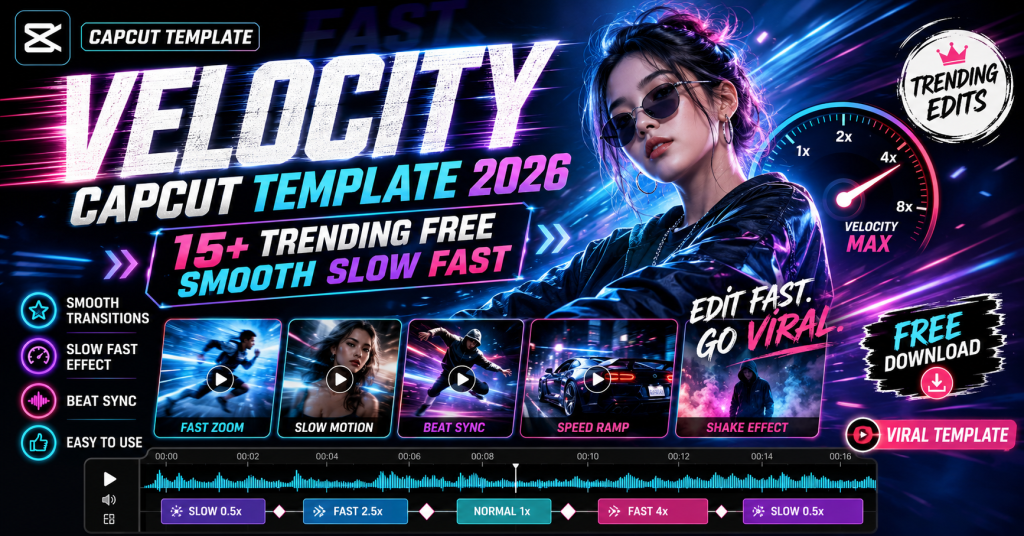
Velocity edits are the backbone of viral CapCut content, that smooth slow to fast speed ramp synced perfectly to the beat. This guide gives you more than fifteen velocity CapCut template options for 2026, each with the exact search term to find it plus the full manual recipe so you can build the effect yourself. Everything is free and works on any phone. Pair this with my slow motion CapCut template guide and the main library for more.
What Is a Velocity Edit? Velocity CapCut Template
A velocity edit changes the speed of your clip dynamically, slowing down on the impactful moments and speeding up on the rest, all timed to the music. The result is that punchy, professional, satisfying flow you see on trending reels. CapCut makes it easy through ready velocity templates, or manually using the curve speed tool.
The magic is in syncing the speed changes to the beat. When the slow moment lands exactly on a beat drop, the edit feels powerful. These templates and recipes are built around that timing.
Why Velocity CapCut Template Are Worth Learning
Velocity is one of the highest engagement edit styles because it makes even simple footage look dynamic. It suits attitude, car, gym, dance, and travel content equally well. Learning both the template shortcut and the manual curve method means you are never stuck waiting for a trend, you can create the look any time. For more on building skills, see my {VEKS} guide.
How to Use a CapCut Template
CapCut templates are applied inside the app, not pasted as a code. The fastest way is to open CapCut, tap Templates, and search the exact name. To make it effortless, every box below gives you the precise search term plus the full manual recipe so you can either find the template or build the look yourself.
- Open the CapCut app and tap the Templates tab.
- Copy a search term from a box below and paste it into the template search.
- Pick a trending template, tap Use template, and add your clips or photos.
- Adjust the text and music, then export. To export clean, see my remove CapCut watermark guide.
- Prefer full control? Follow the manual recipe in the box to build the same effect yourself.
15+ Template Search Terms and Settings (Copy Paste)
Tap Copy on any box. Use the search term to find the trending template, or follow the recipe to recreate it manually. No fake codes, just what actually works inside CapCut.
1. Smooth Velocity CapCut Template Beat Sync
The classic smooth speed ramp synced to the beat. Search this, or build it with the recipe.
Smooth Velocity Beat Sync
SEARCH IN CAPCUT: smooth velocity beat sync 2026

MANUAL RECIPE:
1. Import your clip, tap it, choose Edit then Speed then Curve.
2. Choose Custom and add points.
3. Drag points DOWN to slow, UP to speed up.
4. Place the slowest point exactly on the beat drop.
5. Enable Smooth speed so motion blur looks clean.
6. Add the trending song and align the drop.
2. Attitude Velocity CapCut Template
High energy speed ramps for attitude and entry reels.
Attitude Velocity
SEARCH IN CAPCUT: attitude velocity template trending

MANUAL RECIPE:
1. Use a walking or turn-to-camera clip.
2. Speed Curve: start fast, hard slow on the beat, fast again.
3. Add shake at the drop (see the shake preset link in this post).
4. Grade dark and moody for attitude.
5. Sync the slow frame to the strongest beat.
3. Car Velocity CapCut Template Edit
Smooth speed ramps for car and bike reels.
Car Velocity Edit
SEARCH IN CAPCUT: car velocity edit smooth 2026

MANUAL RECIPE:
1. Use a drive-by or reveal clip of the car.
2. Speed Curve: slow on the reveal, fast on the pass.
3. Enable Smooth speed for clean motion blur.
4. Add a subtle zoom in on the slow point.
5. Grade with cool tones and strong contrast.
4. 3 Clip Velocity CapCut Template
A three clip velocity template, perfect for quick reels.
3 Clip Velocity
SEARCH IN CAPCUT: 3 clip velocity template

MANUAL RECIPE:
1. Add three clips of equal length.
2. Apply the same speed curve to each: slow-fast-slow.
3. Add a transition flash between clips.
4. Sync each slow point to a beat.
5. Keep total length under 12 seconds for reels.
5. Velocity With Shake
Velocity plus a punchy camera shake at the drop.
Velocity With Shake
SEARCH IN CAPCUT: velocity shake template trending

MANUAL RECIPE:
1. Build a smooth speed curve first.
2. At the beat drop, add a quick scale bounce (zoom 100 to 115 to 100).
3. Or import a shake preset for a sharper hit.
4. Add a white flash frame on the drop.
5. Keep the shake short so it feels clean.
6. Slow Motion Velocity
A dreamy slow heavy velocity style.
Slow Motion Velocity
SEARCH IN CAPCUT: slow motion velocity aesthetic

MANUAL RECIPE:
1. Speed Curve weighted toward slow, only brief fast bursts.
2. Enable Smooth speed and add slight motion blur.
3. Grade warm and soft for an aesthetic mood.
4. Use a calm trending song.
5. Sync the slowest point to the vocal or beat.
7. Gym Velocity
Powerful speed ramps for gym and physique reels.
Gym Velocity
SEARCH IN CAPCUT: gym velocity template hard

MANUAL RECIPE:
1. Use a lifting or entrance clip.
2. Speed Curve: fast approach, hard slow on the peak rep.
3. Add shake and a dark moody grade.
4. Use a phonk or hard track.
5. Sync the slow to the heaviest beat.
8. Dance Velocity
Beat matched speed ramps for dance clips.
Dance Velocity
SEARCH IN CAPCUT: dance velocity beat template

MANUAL RECIPE:
1. Mark the song beats first.
2. Speed Curve: fast between moves, slow on each hit.
3. Keep the smooth setting on.
4. Add a subtle glow for energy.
5. Align every slow point to a beat hit.
9. Travel Velocity
Cinematic speed ramps for travel footage.
Travel Velocity
SEARCH IN CAPCUT: travel velocity cinematic

MANUAL RECIPE:
1. Use sweeping landscape or walking clips.
2. Speed Curve: slow on the reveal, fast on movement.
3. Enable Smooth speed for clean blur.
4. Grade warm and cinematic.
5. Add a gentle zoom on the slow reveal.
10. Velocity Transition Pack
Velocity combined with clean transitions.
Velocity Transition Pack
SEARCH IN CAPCUT: velocity transition pack 2026

MANUAL RECIPE:
1. Build speed curves on each clip.
2. Between clips use a zoom or spin transition on the beat.
3. Add a flash frame at each cut.
4. Keep speeds consistent across clips.
5. Sync all cuts to the music.
11. Aesthetic Velocity
Soft, dreamy velocity for aesthetic reels.
Aesthetic Velocity
SEARCH IN CAPCUT: aesthetic velocity soft template

MANUAL RECIPE:
1. Gentle speed curve, mostly slow.
2. Add a soft glow and warm grade.
3. Enable Smooth speed.
4. Use a calm aesthetic song.
5. Keep movement minimal and graceful.
12. Velocity 4K Quality
Velocity with a crisp high quality export.
Velocity 4K Quality
SEARCH IN CAPCUT: velocity 4k quality template

MANUAL RECIPE:
1. Build your velocity curve.
2. Before export, set resolution to 1080p or 4K and frame rate to 60.
3. Set bitrate to high.
4. Enable Smooth speed for clean blur.
5. Export and check sharpness.
13. Boys Velocity
Trending attitude velocity for boys reels.
Boys Velocity
SEARCH IN CAPCUT: boys velocity attitude trending

MANUAL RECIPE:
1. Use a confident walk or turn clip.
2. Speed Curve: fast-slow-fast, hard slow on the drop.
3. Add shake and dark grade.
4. Use a hard trending beat.
5. Sync the slow to the strongest hit.
14. Couple Velocity
Smooth romantic velocity for couple clips.
Couple Velocity
SEARCH IN CAPCUT: couple velocity smooth template

MANUAL RECIPE:
1. Use a candid couple clip.
2. Gentle speed curve, slow on the sweet moment.
3. Enable Smooth speed and warm grade.
4. Use a soft romantic song.
5. Sync the slow to the vocal.
15. Bike Velocity
Aggressive velocity ramps for bike reels.
Bike Velocity
SEARCH IN CAPCUT: bike velocity edit trending

MANUAL RECIPE:
1. Use a ride-by or wheelie reveal clip.
2. Speed Curve: slow on the reveal, fast on the pass.
3. Add shake at the drop.
4. Grade cool and contrasty.
5. Sync to a hard beat.
16. Cinematic Velocity Pro
A premium, film like velocity edit.
Cinematic Velocity Pro
SEARCH IN CAPCUT: cinematic velocity pro 2026

MANUAL RECIPE:
1. Build a refined speed curve, smooth transitions.
2. Add a teal and orange grade.
3. Enable Smooth speed and add subtle film grain.
4. Use a cinematic track.
5. Sync every speed change to the music.
Tips for Smooth Velocity CapCut Template Edits
The keys are timing and motion blur. Always enable Smooth speed in the curve tool so fast sections do not look choppy. Mark your beats before editing so each slow point lands exactly on a beat. Use clips with clear motion, since velocity shines on movement. Keep the edit under twelve seconds for reels. For clean exports without a logo, follow my {RMW} guide.
Velocity CapCut Template for Every Niche
Velocity adapts to any content. Use the gym and bike recipes for power, the couple and aesthetic recipes for softness, and the travel recipe for cinematic flow. Pair velocity with a {WARM} or {MOODY} look for a polished grade. Combine it with the {SHAKE} for an extra punchy drop.
Turn It Into a Viral Reel
Velocity CapCut Template is one of the most reliable viral formats. Keep it short, sync the slow moment to the beat drop, and add a strong opening frame. For more on trending video edits and music sync, see my {IGVID} guide. Posting consistently with a recognisable velocity style helps build a following.
Mastering the Curve Speed Tool
The Curve speed tool is the heart of every Velocity CapCut Template edit, and understanding it sets your work apart. Each point you add on the curve controls speed at that moment, dragging a point down slows the clip while dragging it up speeds it. The trick professionals use is to keep the slowest point sitting exactly on the musical beat, then ramp smoothly back up so the motion never jerks. Always enable Smooth speed, which adds motion blur and removes the choppy look that ruins amateur edits. Start with just three or four points rather than overcomplicating the curve, since a clean simple ramp reads better than a busy one. Practise on a single clip until the slow and fast sections feel musical, then apply the same instinct to longer edits.
Velocity CapCut Template Mistakes That Kill the Vibe
A few common errors make velocity edits look amateur. The biggest is forgetting Smooth speed, which leaves fast sections looking like dropped frames. Another is mistiming the slow point so it lands off the beat, which instantly breaks the satisfying feel. Overusing shake is a third, since a constant rattle is distracting rather than punchy. Avoid extreme speed jumps too, as a sudden leap from very slow to very fast looks unnatural without a smooth ramp between them. Finally, do not let the edit run too long, since velocity reels work best when they are short and tight. Fixing these small things is the difference between a scroll past and a save.
Building a Velocity CapCut Template Style People Recognise
The creators who grow fastest with velocity have a recognisable signature, a consistent grade, a favourite transition, a go to pacing. Pick a look you love, whether dark and aggressive or smooth and cinematic, and apply it across your edits so your page feels cohesive. Pair your velocity with a consistent colour grade using my warm cinematic Lightroom preset or moody dark Lightroom preset preset, and reuse a signature shake or flash so viewers start to recognise your work. Consistency compounds, and a recognisable velocity style turns one off viewers into followers who come back for your next edit.
Choosing the Right Clips for Velocity
Not every clip suits a velocity edit, and choosing well saves hours. Velocity shines on footage with clear, continuous motion, a walk toward the camera, a car passing, a turn, a dance move, because the speed changes have something to act on. Static shots feel lifeless when ramped. Film a little longer than you need so you have room to find the perfect slow and fast sections. Steady footage also helps, since heavy camera shake fights against the smooth ramp. When you start with a clip built for motion, the velocity effect feels natural and powerful rather than forced, which is half the battle won before you even open the curve tool.
Exporting Velocity Edits at Their Best
A great velocity edit deserves a clean export. Set your resolution to at least 1080p, ideally 4K, with 60fps so the fast sections stay smooth, and push the bitrate to the highest option to preserve the motion blur detail. Low bitrate exports turn smooth ramps into a blocky mess on upload. Always export without a watermark for a professional finish, which my remove CapCut watermark guide walks through step by step. Taking thirty extra seconds on your export settings protects all the careful timing work you put into the edit, and it is the final touch that makes your velocity reels look genuinely premium.
Frequently Asked Questions (FAQ)
Are these velocity templates free?
Yes. The search terms find free trending templates in CapCut, and the manual recipes let you build the effect yourself for free.
How do I make a smooth velocity edit?
Use the Curve speed tool, add points to slow and speed up, and enable Smooth speed. Sync the slowest point to the beat drop.
Can I do velocity without a template?
Yes. Every box includes a full manual recipe using the Curve speed tool, so you can build the effect from scratch.
How do I export without a watermark?
Follow my remove CapCut watermark guide for clean exports. Velocity edits look best exported at high bitrate.
What music works best for velocity?
Songs with a clear beat drop work best, since the slow moment should land on the drop. Trending phonk and hard beats suit attitude edits.
Why does my fast section look choppy?
Enable Smooth speed in the curve tool, which adds motion blur and makes fast sections look clean and professional.
Final Thoughts
Velocity edits turn simple footage into dynamic, scroll stopping content, and with these fifteen plus search terms and recipes you can create the look any time, with or without a template. Save this page, master the curve tool, and sync your slow moments to the beat. For more, see my slow motion CapCut template guide and explore the full library at Editing By Vikas.