Slow Motion CapCut Template 2026 (Free Link and Tutorial)
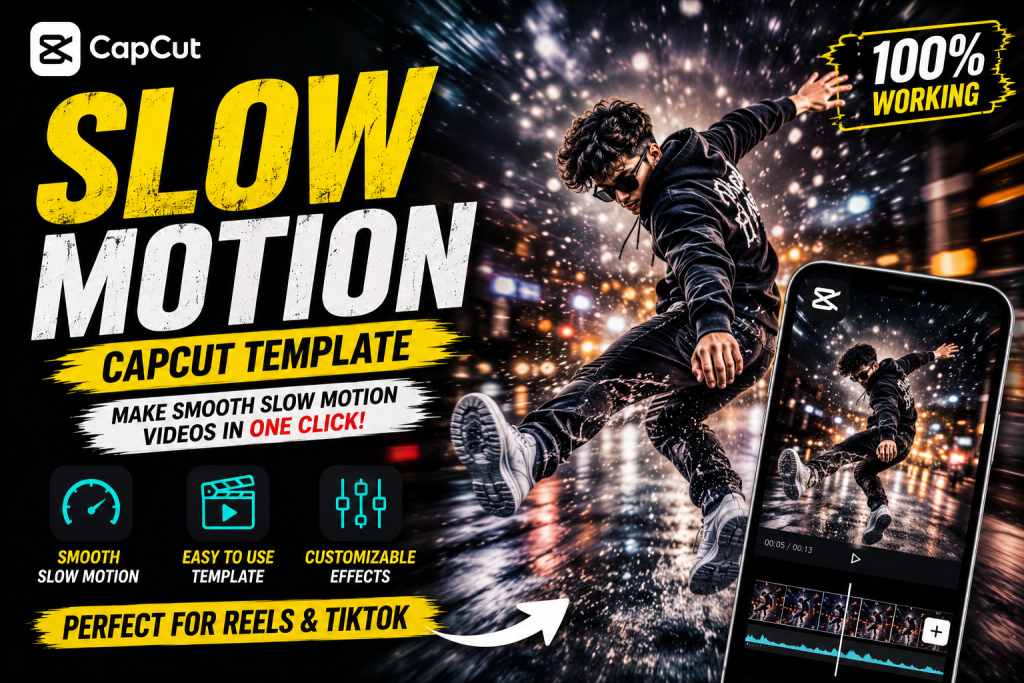
The slow motion CapCut template is the heart of every emotional, aesthetic, and romantic reel you see in 2026. It slows your footage smoothly and syncs it to the music for a dreamy, cinematic feel. This guide gives you the working template approach, a full tutorial, and the tips that make slow motion edits look buttery smooth instead of choppy.
What Is a Slow Motion Edit?
A slow motion edit reduces the playback speed of your footage so movement becomes graceful and deliberate. It adds emotion and weight to a moment, which is why it suits romantic, sad, travel, and aesthetic content. The slow motion CapCut template builds the timing and smoothing in, so your clips slow down at the right moments without manual editing.
How to Use the Slow Motion Template
- Install or update the CapCut app to the latest version.
- Open the slow motion template inside CapCut.
- Tap Use Template and add your clips or photos.
- Trim each clip so the key moment lands with the music.
- Export at 1080p without the watermark and post your reel.
For more styles, see my full CapCut template links collection.
Slow Motion vs Velocity
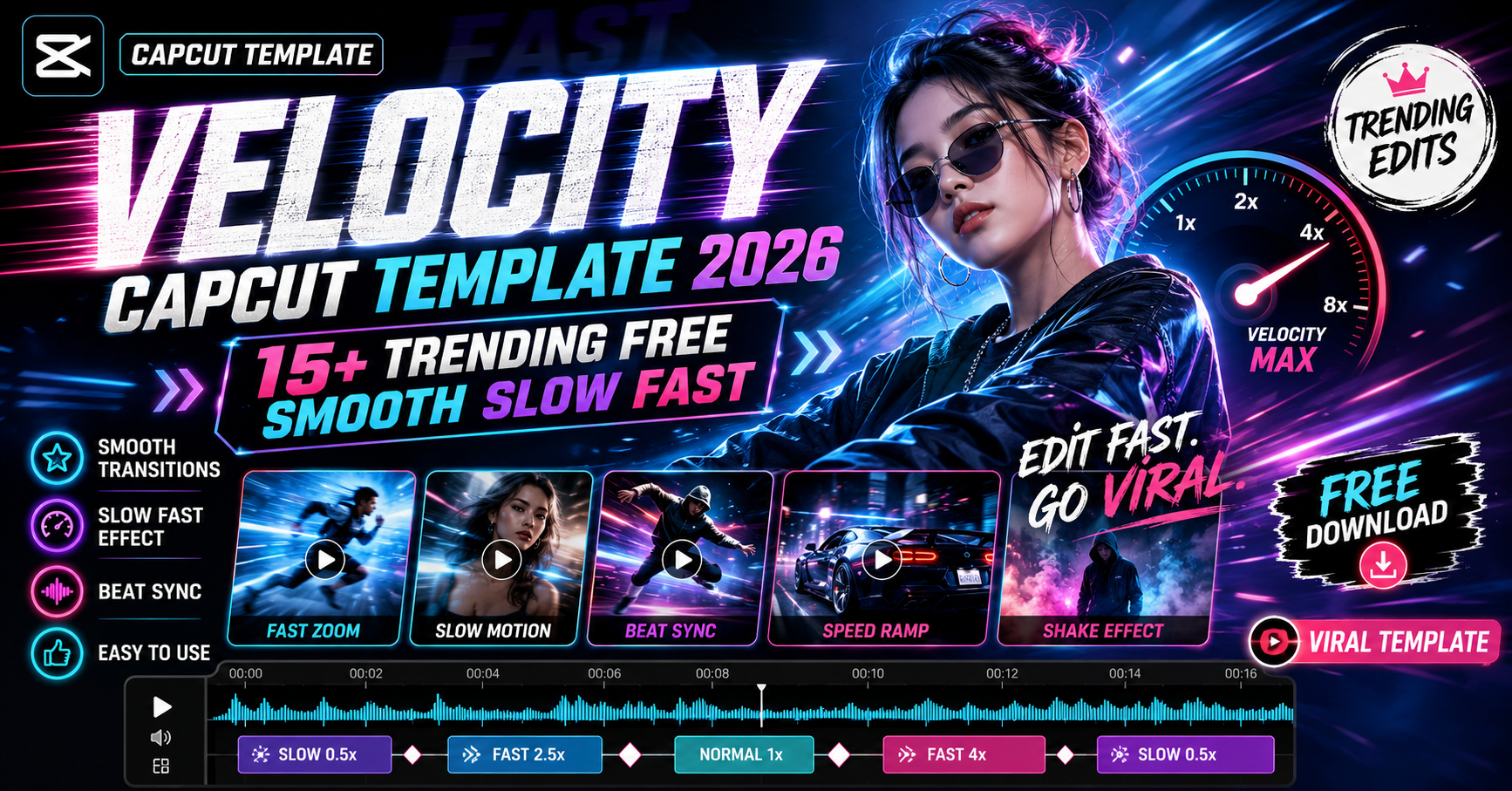
These two styles are often confused. A slow motion template keeps a steady slow pace for an emotional, calm feel. A velocity CapCut template speeds up and slows down within one clip for high energy. Use slow motion for romantic and aesthetic content, and velocity for sports, dance, and transitions. For dark attitude content, a phonk CapCut template fits better.
Best Footage for Smooth Slow Motion
Smooth slow motion starts in the camera. Film at 60fps or higher where possible, because extra frames keep the slowed footage fluid instead of stuttering. Shoot in good light, since dark clips turn grainy when slowed. Keep the camera steady, as slow motion exaggerates shake. Walking shots, hair movement, water, and gentle gestures all look beautiful slowed down. For photo based slow reveals, generate portraits with my AI photo editing prompts.
Add Emotion With Colour and Music
Slow motion feels best with the right colour and sound. Apply a soft warm grade with my moody dark Lightroom preset for an emotional mood, and choose a calm, trending track. Romantic couple reels work especially well, so pair this template with my AI couple photo editing prompts. The full workflow is in my reel editing guide.
Keep Your Export Clean
A smooth slow motion edit deserves a clean finish. Remove the template creator watermark before export, which my guide on removing the CapCut watermark explains step by step. Export at 1080p and upload directly from your gallery to keep the quality crisp.
Mistakes to Avoid
Do not slow footage that was filmed at a low frame rate, because it will stutter. Do not over slow the clip, since extreme slow motion drags and loses viewers. And always sync the slowest moment to the emotional beat of the music for the strongest impact.
Slow Motion for Different Content Types
Slow motion adapts to many moods. For romantic reels, slow the moment two people meet eyes for maximum emotion. For travel content, slow a sweeping landscape or a walk through a scenic street to let viewers absorb the beauty. For fashion and outfit reveals, slow the turn so the clothing flows. For nature and aesthetic clips, slow water, hair, or fabric for a dreamy feel. Matching the slow moment to the emotional peak of the clip is what makes the edit land. The template handles the smoothing, so your job is simply choosing the right moment to stretch.
Combining Slow Motion With Transitions
Slow motion becomes even more powerful when paired with smooth transitions. A gentle zoom or fade between slowed clips keeps the calm mood flowing, while a sharp cut can break it. Add subtle motion with my Alight Motion shake preset only on the rare beat that calls for energy, and otherwise keep transitions soft. For an even more cinematic result, build the base in VN with my VN cinematic code, then bring it back for the slow motion finish. The goal is a seamless, emotional flow from start to end.
Choosing the Right Slow Motion Speed
Speed choice changes the entire feel of a slow motion edit. A gentle slow at around half speed keeps movement graceful while staying watchable. A heavier slow suits a single dramatic moment but drags if used for the whole clip. Match the speed to the emotion, slower for the peak moment and closer to normal for the build up. Avoid slowing footage that was filmed at a low frame rate, because it stutters. Used with intention, the right speed turns an ordinary clip into an emotional, cinematic moment that holds attention right to the final frame. Experiment with two or three speeds on the same clip and keep whichever one carries the most feeling.
Frequently Asked Questions (FAQ)
What is a slow motion CapCut template?
It is a ready made edit that smoothly slows your footage and syncs it to the music for an emotional, cinematic feel.
Is the slow motion template free?
Yes. It works in the free CapCut app, though some effects may need CapCut Pro.
Why does my slow motion look choppy?
Usually the footage was filmed at a low frame rate. Film at 60fps or higher for smooth slow motion.
What content suits slow motion?
Romantic, sad, travel and aesthetic content suit slow motion best, especially couple reels and gentle movement.
Quick Recap for Smooth Slow Motion
For buttery slow motion, film at 60fps or higher, shoot in good light, keep the camera steady, and sync the slowest moment to the emotional beat. Avoid over slowing, finish with a soft grade and calm audio, and remove the watermark before posting. Slow motion is about emotion, so let each moment breathe.
Final Thoughts
The slow motion CapCut template is the easiest way to create emotional, cinematic reels. Grab the template, film at a high frame rate, and finish with colour and clean export using the tools across Editing By Vikas. Browse more in the CapCut template links hub, updated every week.