Passport Style AI Photo Editing Prompt 2026 (10+ Free Copy Paste)
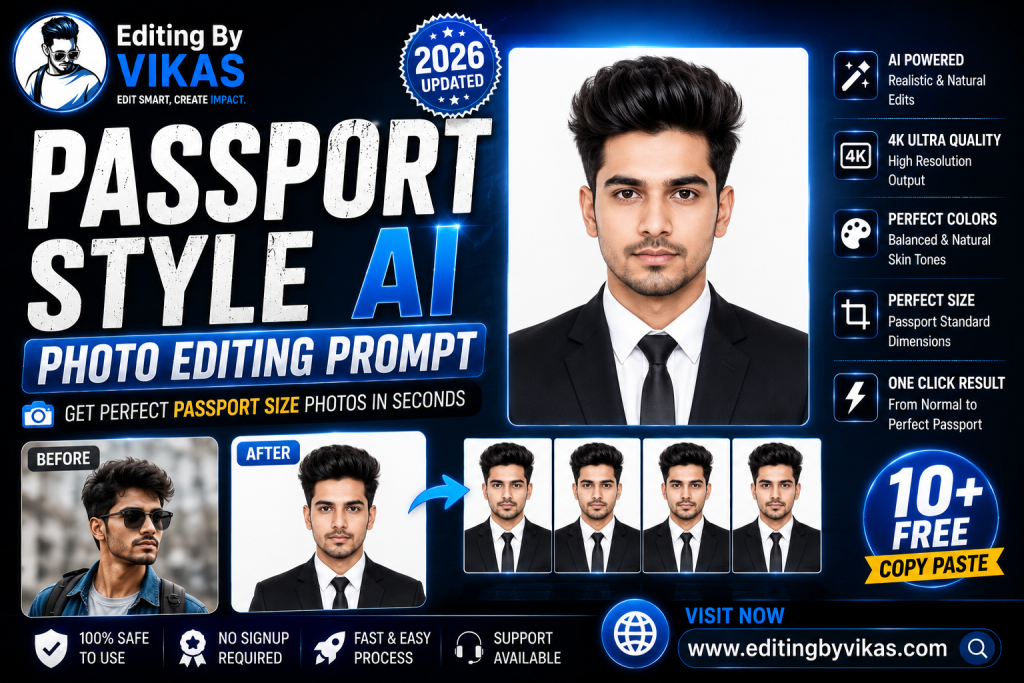
A clean, compliant passport style photo is something everyone needs, and these passport style AI photo editing prompts create one from an ordinary selfie. Below are more than ten copy paste prompts in one tap copy boxes, designed to produce a clear face, a plain regulation background, and even professional lighting while keeping your features exactly accurate. Ideal for IDs, applications, and professional profiles. For creative portraits, see the AI photo editing prompts hub.
What Makes a Good Passport Style Photo?
A passport style photo needs a clear, front facing face, even lighting with no harsh shadows, a plain light background, and natural colour with no heavy filters, plus a neutral expression. These prompts build exactly that, turning a casual photo into a clean, compliant looking image while keeping your real appearance intact.
1. White Background Passport Prompt
The standard clean white background photo.
White Background Passport Prompt
Edit this photo into a passport style photo. Keep the same face exactly with no changes to features. Replace the background with a plain even white background, add soft even lighting with no harsh shadows, a neutral expression, natural skin colour, and a clear front facing view. Professional clean finish, high resolution.
2. Light Grey Background Prompt
A plain light grey ID background.
Light Grey Background Prompt
Edit this photo into a formal ID photo. Keep the same face exactly. Replace the background with a plain light grey background, add soft even lighting, no harsh shadows, natural skin tone, a neutral expression, and a clear front facing view. Professional compliant finish, high resolution.
3. Light Blue Background Prompt
A light blue background for certain IDs.
Light Blue Background Prompt
Edit this photo into a formal ID photo with a light blue background. Keep the same face exactly. Add a plain even light blue background, soft even lighting, no shadows, natural skin colour, a neutral expression, and a clear front facing view. Compliant finish, high resolution.
4. Professional Headshot Prompt
A polished business headshot.
Professional Headshot Prompt
Edit this photo into a professional business headshot. Keep the same face exactly. Add soft professional lighting, a clean neutral background, a smart confident expression, balanced natural skin tones, and crisp detail. Premium corporate finish, ultra sharp 4K, front facing.
5. Formal Attire ID Prompt
Neat formal clothing for a document photo.
Formal Attire ID Prompt
Edit this photo into a formal ID photo with smart attire. Keep the same face exactly. Dress the subject in a neat formal shirt or blazer, add a plain light background, soft even lighting, a neutral expression, and natural skin colour. Clean professional finish, high resolution.
6. Visa Compliant Prompt
A clear regulation style visa photo.
Visa Compliant Prompt
Edit this photo into a visa style compliant photo. Keep the same face exactly with no feature changes. Use a plain white background, soft even lighting with no shadows behind the head, a neutral expression, both ears and full face visible, and natural colour. Clean regulation finish, high resolution.
7. School ID Prompt
A clean school or college ID photo.
School ID Prompt
Edit this photo into a clean school ID photo. Keep the same face exactly. Add a plain light background, soft even lighting, a neutral friendly expression, natural skin tone, and a clear front facing view. Professional clean finish, high resolution.
8. Job Application Prompt
A polished photo for a job application.
Job Application Prompt
Edit this photo into a polished job application photo. Keep the same face exactly. Add a neat formal look, soft professional lighting, a clean neutral background, a confident neutral expression, and natural skin. Premium professional finish, high resolution.
9. Spectacles Friendly Prompt
A clear ID photo for glasses wearers.
Spectacles Friendly Prompt
Edit this photo into a clean ID photo. Keep the same face and glasses exactly with no glare on the lenses. Add a plain light background, soft even lighting with no reflections on the glasses, a neutral expression, natural skin, and a clear front facing view. Compliant finish, high resolution.
10. Matte Studio Headshot Prompt
A soft matte professional headshot.
Matte Studio Headshot Prompt
Edit this photo into a soft matte professional headshot. Keep the same face exactly. Add gentle even studio lighting, a clean light grey background, a calm confident expression, natural matte skin, and crisp detail. Premium finish, high resolution.
How to Use These Prompts Step by Step
- Open ChatGPT and start image editing mode.
- Upload a clear, well lit photo with a simple background.
- Tap Copy on the prompt box you want and paste it into the chat.
- Attach your photo in the same message and send.
- If the result is close but not perfect, add one short instruction such as keep the face exactly the same.
- Download the final image and use it for your post or reel.
Tips for the Best Results
Accuracy matters most, so always include keep the same face exactly with no feature changes, since official photos must look like you. Use a clear, front facing source with a neutral expression. Avoid heavy makeup, filters, or accessories that hide the face. Always check your country specific size and format rules before final use. For a more creative portrait, see the studio background editing guide.
Customising These Prompts
These prompts adapt to different requirements. Change the background colour to match your document, white, grey, or light blue, and add or remove formal attire as needed. For glasses, use the spectacles friendly prompt to avoid glare. A follow up such as make the background pure white refines the result for strict requirements.
A Note on Official Document Use
AI edited photos can look clean and professional, but official documents have strict rules, and some authorities require an unedited photo taken by an approved studio. Always check the official guidelines for your specific passport, visa, or ID before submitting an AI edited image. These prompts are excellent for professional profiles, work headshots, school IDs, and informal needs, and they are a useful preview of how a compliant photo should look before you visit a studio.
Sizing and Printing Correctly
Even a perfect photo must be the right size. Passport and ID photos have specific dimensions, often around 35 by 45 millimetres or 2 by 2 inches depending on the country, with rules on how much of the frame the head fills. After generating your photo, crop it to the exact size your document requires, keeping the head centred. For printing, use a photo quality setting, and for digital applications, check the required file size and format before uploading.
Turn Your Edit Into a Reel
This is a practical, professional edit, so a reel is optional, but a clean headshot is useful across all your profiles. For polished video content, see my trending AI video editing guide, and explore more portrait styles in the AI photo editing prompts hub.
Common Mistakes to Avoid
Do not change your real features, so always keep the face exactly. Do not use a coloured or patterned background for official use. Do not add heavy filters. And always check your document’s specific rules before submitting an AI edited photo.
Frequently Asked Questions (FAQ)
Are these passport style prompts free?
Yes. Copy any prompt here for free and use it in Gemini or ChatGPT, which may limit daily free generations.
Can I use an AI photo for an official passport?
Some authorities require an unedited studio photo, so always check your official guidelines first. These prompts are ideal for professional profiles and informal ID needs.
How do I keep my face accurate?
Always include keep the same face exactly with no feature changes, and use a clear front facing source photo with a neutral expression.
What if I wear glasses?
Use the spectacles friendly prompt, which keeps your glasses with no glare on the lenses.
What background colour should I use?
Most passports require plain white, while some IDs use light grey or light blue. Choose the prompt that matches your requirement.
Common Reasons ID Photos Get Rejected
Official photos are rejected for predictable reasons, and knowing them helps you create a compliant looking image. The most frequent issues are shadows on the face or behind the head, a background that is not plain or is the wrong colour, an expression that is not neutral, hair covering the eyes, glare on glasses, and uneven or coloured lighting. Some authorities also reject visibly filtered or heavily edited photos. The prompts on this page address these by asking for even lighting with no shadows, a plain background, a neutral expression, and a clear front facing view, with a dedicated option for glasses wearers to avoid lens glare. To stay safe, use a source photo where your full face is visible, both eyes are open, and you are looking straight at the camera, with hair away from your eyes. Remember that requirements differ by country and document, so always read the official specification before relying on any photo for submission, and note that some authorities require an unedited studio photo. These prompts are excellent for professional profiles, work and school IDs, and informal needs, and they preview how a compliant photo should look before you visit a studio. For a more creative portrait alongside your professional one, the studio background editing guide pairs well.
Final Thoughts
These passport style AI photo editing prompts give you a clean, professional photo from an ordinary selfie in one tap. Save this page, try all the prompts, and check your official requirements before any document use. For creative portraits, explore the wider AI photo editing prompts library at Editing By Vikas.