3D AI Photo Editing Prompts 2026 (5+ Free Copy Paste)
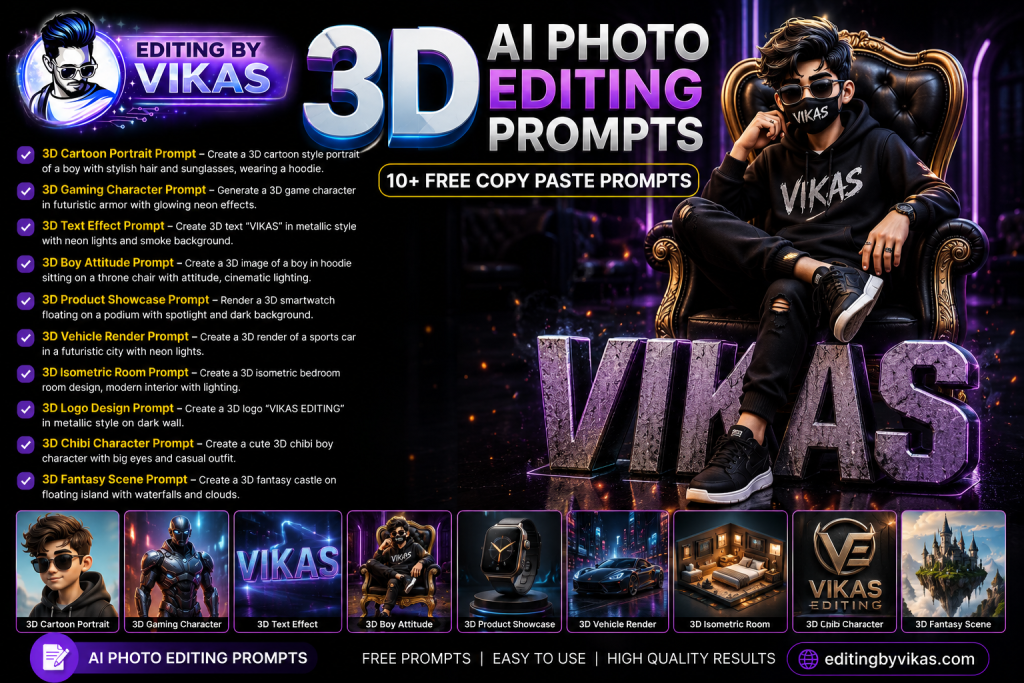
The 3D effect is one of the most eye catching looks in 2026, and these 3D AI photo editing prompts let you create depth filled, pop out portraits in seconds. This guide gives you five copy paste prompts, each in a one tap copy box, designed to add realistic depth, dramatic lighting, and a striking three dimensional feel while keeping your face natural. From a subtle depth boost to a full pop out effect, there is a prompt here for every style.
What Makes a Photo Look 3D?
A 3D look is created by strong separation between the subject and the background, layered depth, and lighting that wraps around the subject. When the foreground is sharp, the background falls away softly, and the light models the face, the image feels like it has real depth. These prompts ask the AI for exactly those elements, which is why the results feel three dimensional rather than flat.
1. Realistic Depth Portrait Prompt
This prompt adds natural, believable depth with a soft background and sharp subject, the foundation of every 3D look.
Realistic Depth Prompt
Edit this photo into a realistic 3D depth portrait. Keep the same face, outfit and pose. Add strong subject separation, a softly blurred layered background, wrap around lighting on the face, sharp foreground detail, and natural skin texture. Cinematic depth of field, ultra sharp 4K.
2. Pop Out 3D Effect Prompt
For a bold effect where the subject appears to break out of the frame, use this prompt. It is a strong attention grabber.
Pop Out 3D Prompt
Edit this photo into a 3D pop out effect. Keep the same face and pose. Make the subject appear to step out of a framed border, add depth with shadows behind the frame, dramatic lighting, sharp detail on the subject, and a soft background. Realistic, high resolution, striking 3D look.
3. Cinematic 3D Portrait Prompt
This prompt blends 3D depth with a film colour grade for a premium, cinematic result.
Cinematic 3D Prompt
Edit this photo into a cinematic 3D portrait. Keep the same face and outfit. Add layered depth, a teal and orange film grade, soft rim lighting, strong subject separation, gentle background blur, and realistic skin. Sharp 4K, movie like depth and mood.
4. Floating Elements 3D Prompt
For a creative look with elements floating around the subject in depth, this prompt adds a magical 3D feel.
Floating Elements 3D Prompt
Edit this photo into a creative 3D portrait with floating elements. Keep the same face and pose. Add soft floating particles and light orbs at different depths around the subject, wrap around lighting, strong depth separation, and realistic detail. Dreamy 3D feel, high resolution.
5. Bold Studio 3D Prompt
This prompt creates a clean, high contrast 3D studio portrait that pops against a simple backdrop.
Studio 3D Prompt
Edit this photo into a bold studio 3D portrait. Keep the same face and pose. Add strong directional studio lighting, deep shadows for depth, a clean dark backdrop, sharp three dimensional detail on the subject, and balanced skin tones. Premium finish, ultra sharp 4K.
How to Use These Prompts Step by Step
- Open ChatGPT and start image editing mode.
- Upload a clear, well lit photo with a simple background.
- Tap Copy on the prompt box you want and paste it into the chat.
- Attach your photo in the same message and send.
- If the result is close but not perfect, add one small instruction such as keep the face exactly the same or make the background darker.
- Download the final image and use it for your post or reel.
Tips for a Convincing 3D Look
The strongest 3D edits rely on depth and lighting working together. Always ask for subject separation and a soft background, because that contrast is what creates the sense of space. Wrap around lighting on the face adds realism, since flat light makes even a deep scene look fake. Use a sharp source photo, as the AI emphasises detail that is already there. For the lighting fundamentals behind premium depth, see my cinematic AI photo editing prompt guide.
Customising the 3D Effect
You can dial the effect up or down. For a subtle, natural result, use the realistic depth prompt and add the word gentle to the depth instruction. For a bold, scroll stopping look, use the pop out prompt and ask for stronger shadows behind the frame. Change the background to suit your mood, from a clean studio backdrop to a soft outdoor scene. A single follow up such as add more depth refines the result without starting over.
Turn Your 3D Edit Into a Reel
3D portraits look incredible with motion. Pair your images with a velocity CapCut template for an energetic reveal, add subtle motion with my Alight Motion shake preset, then grade with a free Lightroom preset DNG. The full workflow from photo to reel is in my reel editing guide, and you can browse more styles in the AI photo editing prompts hub.
Mistakes to Avoid
Do not use a flat, evenly lit source photo, because depth needs light and shadow. Do not blur the background so heavily that it looks unnatural. Do not over use floating elements, since a few well placed ones look magical while too many look cluttered. And always lock the face so the 3D enhancement keeps your real features.
How Depth and Parallax Create the 3D Illusion
The sense of three dimensions in a photo comes from how our eyes read depth cues. The main cues are overlap, where the subject clearly sits in front of the background, relative blur, where distant areas are softer than the sharp foreground, and lighting that wraps around a form to reveal its shape. When an edit combines all three, the brain reads the flat image as having real depth. Parallax, the way nearer objects appear to shift more than distant ones, is what makes the pop out effect so striking, since the framed border sits at one depth while the subject breaks past it. When you write a 3D prompt, asking for strong subject separation, layered background blur, and wrap around lighting targets these exact cues. The more clearly you describe the layers, the more convincing the depth, which is why the prompts on this page specify foreground, subject, and background separately.
Using 3D Edits for Thumbnails and Posters
The 3D look is not only for feed posts. Its strong depth and bold subject separation make it ideal for video thumbnails, where you need to grab attention in a crowded feed. A pop out portrait against a clean background reads instantly even at small sizes, which can lift your click through rate. The same qualities suit event posters and profile banners, where a striking, dimensional subject stands out. For these uses, generate the image with the bold studio or pop out prompt, then add your text in a separate design step, keeping the text clear of the subject so the depth stays the hero. Pair the result with motion using a velocity CapCut template if you want an animated version for reels, and explore more portrait styles in the AI photo editing prompts hub.
Frequently Asked Questions (FAQ)
What are 3D AI photo editing prompts?
They are instructions that tell an AI tool to add realistic depth, subject separation and wrap around lighting so your photo looks three dimensional while keeping your face natural.
Are these prompts free?
Yes. Every prompt here is free to copy and use in Gemini or ChatGPT, which may limit daily free generations.
How do I make the 3D effect stronger?
Use the pop out prompt and ask for stronger shadows and more subject separation. A follow up such as add more depth also helps.
Which tool is best for 3D edits?
Both Gemini and ChatGPT work well. ChatGPT gives strong control over depth and lighting, while Gemini keeps faces consistent.
Can I use 3D edits for reels?
Yes. 3D portraits look great with motion. Add them to a velocity template and a subtle shake effect for a striking reel.
Choosing the Right Source Photo for 3D
The quality of a 3D edit depends heavily on the source image. Choose a sharp, well lit photo where the subject is clearly the focus and the background is reasonably simple, because the AI builds depth more convincingly when it can cleanly separate foreground from background. Avoid busy scenes where the subject blends into clutter, since the depth illusion weakens. Good directional light in the original helps too, as light and shadow are what give a form its three dimensional shape. If you are taking the photo specifically for a 3D edit, stand a little away from the background and let some space fall behind you, which gives the model room to create layered blur. With a clean, sharp base, the prompts on this page produce a far stronger pop out effect. For more depth driven styles and tips, return to the AI photo editing prompts hub regularly.
Final Thoughts
These 3D AI photo editing prompts give you depth filled, striking portraits in one tap. Save this page, try all five, and pair your favourite with a velocity reel and a clean grade from across Editing By Vikas. Fresh prompts are added every week in the AI photo editing prompts library.