Normal to 4K High Quality Photo Editing Prompts 2026 (20+ Free Copy Paste, Gemini)

AI photo editing has completely changed how we improve our pictures. Just a few years ago, turning a grainy, low quality phone photo into a crisp, professional looking image meant hours in complicated software like Photoshop. Today, you can transform a normal photo into a sharp 4K high quality image in seconds using simple copy paste prompts inside tools like Google Gemini. This guide is the most complete resource you will find on the topic, with more than twenty tested Normal to 4K High Quality Photo Editing Prompts, each in a one tap copy box, plus the exact technique to get clean, realistic results every single time.
Whether you want a cinematic profile picture, a restored old family photo, a sharp social media portrait, or a 4K wallpaper, there is a prompt below for you. Every prompt is written to upscale resolution, sharpen detail, fix lighting, and remove noise while keeping your face completely natural. Bookmark this page alongside the main AI photo editing prompts hub, because new prompts are added regularly.
What Is Normal to 4K High Quality Photo Editing Prompts?
Normal to 4K photo editing is the process of using artificial intelligence to upscale and enhance a low or medium quality image into a sharp, Ultra HD result. Instead of simply stretching the pixels, which makes a photo look blurry and blocky, the AI actually analyses your image and intelligently reconstructs the missing detail. It studies faces, textures, edges, and lighting, then rebuilds them at a higher resolution so the final image looks clean and realistic rather than artificially enlarged.
This is fundamentally different from old fashioned resizing. A normal upscale just guesses the colour of new pixels by averaging the ones around them, which is why zoomed in photos look soft. AI enhancement, on the other hand, has learned from millions of real high resolution photos, so it knows what sharp skin, hair, fabric, and eyes are supposed to look like, and it recreates that detail convincingly.
What the AI Actually Improves
When you run a normal to 4K prompt, the AI works on several things at once. It increases the resolution to 4K or Ultra HD so the image holds up on large screens. It sharpens facial features and fine textures like hair and fabric. It balances the exposure and contrast so dark areas open up and bright areas are not blown out. It improves colour depth and corrects faded or dull tones. And it removes the noise, grain, and compression artifacts that make a photo look cheap. The result is an image that looks like it was taken on a far better camera than it actually was.
Why People Are Switching to AI Upscaling
The biggest reason is speed and simplicity. A professional retoucher might take thirty minutes to clean up a single portrait, and learning to do it yourself takes months. An AI prompt does a comparable job in under a minute with no skills required. On top of that, social platforms increasingly favour sharp, high quality visuals, so creators who post crisp 4K images tend to get more reach. For more on the tools behind this, see my guide to the best free AI photo editor.
How These 4K Prompts Work
Every prompt below follows a tested structure that gives the AI clear instructions. It tells the model what to do, such as increase resolution and sharpen detail, how to handle your face, which is always to keep it exactly the same, and what finish to aim for, such as DSLR quality or cinematic HDR. This structure is the reason these prompts produce consistent, natural results instead of distorted or over processed ones. You can paste them as they are, or tweak a word or two to match your photo.
20+ Best Normal to 4K Photo Editing Prompts (Copy Paste)
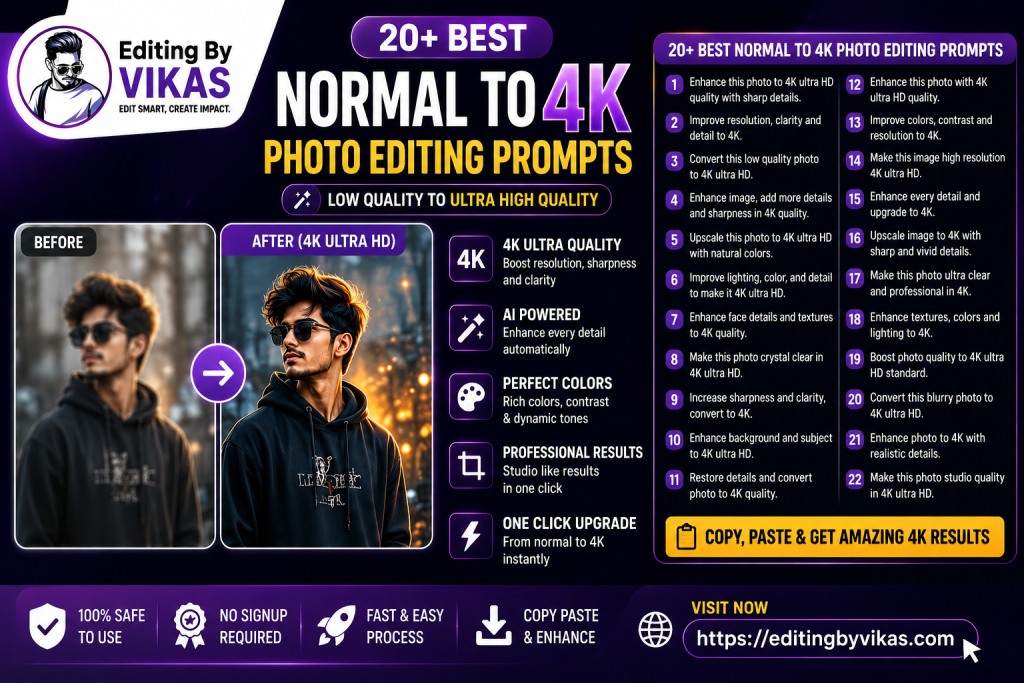
Below are more than twenty copy paste prompts, organised from everyday enhancement to specialised tasks like old photo restoration, low light rescue, and 8K style detail. Tap the Copy button on any box, paste it into Gemini with your photo attached, and download the result. Each prompt keeps your face natural while transforming the quality.
1. Basic Normal to 4K Enhancement Prompt
The everyday all rounder. It cleans up a normal phone photo and rebuilds it in sharp 4K while keeping your face exactly the same.
1. Basic Normal to 4K Enhancement Prompt
Enhance this image into ultra realistic 4K quality. Increase the resolution to Ultra HD, sharpen facial features and fine textures, balance the lighting and contrast, restore natural skin detail, reduce noise and compression artifacts, and produce a clean professional DSLR style photo. Keep the original face, pose and outfit exactly the same. Natural colours, highly detailed, no over smoothing.
2. DSLR Camera Quality Prompt
Makes a casual photo look like it was shot on a professional camera, with crisp focus and a natural depth of field.
2. DSLR Camera Quality Prompt
Transform this photo to look like it was taken with a professional DSLR camera. Render it in ultra sharp 4K, add a natural shallow depth of field with a softly blurred background, crisp focus on the eyes and face, balanced exposure, realistic skin texture, and true to life colours. Keep the same face and pose. Professional photography quality, highly detailed.
3. HDR Cinematic 4K Prompt
Adds dramatic film style lighting and a wide dynamic range for a bold, cinematic look.
3. HDR Cinematic 4K Prompt
Convert this normal image into a cinematic 4K HDR photo. Expand the dynamic range, increase sharpness, apply professional colour grading with deep shadows and bright highlights, add dramatic directional lighting, and create a film like mood. Keep the same face exactly. Ultra realistic, high contrast, detailed textures, cinematic look, 4K HD.
4. Professional Studio Portrait Prompt
Turns any photo into a clean studio headshot with soft lighting and a tidy background.
4. Professional Studio Portrait Prompt
Transform this photo into a professional studio portrait. Add soft even studio lighting, sharpen the facial features, keep natural skin texture, add a clean softly blurred background, balanced tones, and render in ultra realistic 4K resolution. Keep the same face exactly. Premium DSLR camera quality, highly detailed.
5. Social Media 4K Profile Prompt
Optimised for Instagram and TikTok profile pictures with modern colour and clean focus.
5. Social Media 4K Profile Prompt
Enhance this image into a social media ready 4K portrait. Ultra realistic 4K HD resolution, balanced flattering lighting, sharp focus on the face, modern clean colour grading, a soft clean background blur, and a polished professional look. Keep the same face and outfit. Highly detailed, natural and crisp.
6. Old Photo Restoration 4K Prompt
Repairs faded, scratched, or low resolution old photos and upscales them to HD.
6. Old Photo Restoration 4K Prompt
Restore and enhance this old low quality photo. Remove noise, scratches and blur, repair faded and discoloured areas, rebuild lost detail, sharpen the face and textures, and upscale the image to ultra high definition 4K resolution. Keep the original face, features and clothing exactly the same. Natural realistic colours, clean restored finish.
7. Low Light to Clear 4K Prompt
Rescues dark, grainy, badly lit photos and brightens them into clean, sharp images.
7. Low Light to Clear 4K Prompt
Enhance this dark low light photo into a clear 4K image. Brighten the exposure naturally, recover detail from the shadows, reduce grain and noise, sharpen the face and textures, balance the colours, and keep the lighting realistic rather than flat. Keep the same face exactly. Ultra HD, clean, detailed, natural tones.
8. Blurry to Sharp 4K Prompt
Specifically targets motion blur and soft focus, reconstructing crisp detail.
8. Blurry to Sharp 4K Prompt
Fix this blurry photo and make it ultra sharp in 4K. Reconstruct fine facial detail, remove motion blur and softness, restore clear edges and textures, sharpen the eyes and hair, and keep the result natural rather than over processed. Keep the same face and pose exactly. Ultra HD, highly detailed, realistic.
9. Golden Hour Cinematic 4K Prompt
Adds warm sunset light and a dreamy glow while upscaling to 4K.
9. Golden Hour Cinematic 4K Prompt
Enhance this image into a warm golden hour 4K portrait. Add soft golden sunlight with a gentle rim glow, warm cinematic tones, a soft background blur, increased sharpness, and 4K Ultra HD detail. Keep the same face and pose exactly. Realistic skin, dreamy premium finish, highly detailed.
10. Moody Cinematic 4K Prompt
A darker, dramatic grade with deep shadows for a premium film mood.
10. Moody Cinematic 4K Prompt
Convert this photo into a moody cinematic 4K portrait. Add deep dramatic shadows, a teal and warm colour grade, soft rim lighting, increased sharpness, fine detail, and 4K Ultra HD resolution. Keep the same face exactly. Realistic skin texture, premium film look, high contrast, detailed.
11. Outdoor Natural 4K Prompt
Best for outdoor shots, enhancing natural light and scenery without looking fake.
11. Outdoor Natural 4K Prompt
Enhance this outdoor photo into a natural 4K image. Improve the natural daylight, add gentle depth with a softly blurred background, sharpen the face and surroundings, balance the sky and shadows, and render in Ultra HD. Keep the same face and pose exactly. Realistic colours, crisp, detailed, true to life.
12. Group Photo 4K Enhance Prompt
Sharpens every face in a group shot and keeps the lighting even across everyone.
12. Group Photo 4K Enhance Prompt
Enhance this group photo into a sharp 4K image. Sharpen every face equally, keep the lighting consistent and even across all people, balance the exposure, reduce noise, and upscale to Ultra HD. Keep all faces exactly the same. Natural realistic colours, highly detailed, clean.
13. Skin Detail Natural 4K Prompt
Improves skin clarity without the plastic look that ruins many AI edits.
13. Skin Detail Natural 4K Prompt
Enhance this portrait into 4K with natural skin detail. Sharpen the face, keep realistic skin texture and pores, gently even the tone without smoothing away detail, brighten the eyes, and upscale to Ultra HD. Keep the same face exactly. Natural, realistic, premium DSLR quality, no plastic skin.
14. Black and White 4K HD Prompt
A timeless monochrome upscale with rich contrast and film grain.
14. Black and White 4K HD Prompt
Convert this photo into a timeless black and white 4K portrait. Add dramatic soft lighting, deep blacks and bright highlights, fine film grain, sharpened facial detail, and Ultra HD resolution. Keep the same face and pose exactly. Classic premium monochrome finish, highly detailed.
15. Wallpaper 4K Quality Prompt
Renders the image as a crisp, high resolution wallpaper.
15. Wallpaper 4K Quality Prompt
Enhance this image into a 4K wallpaper quality photo. Maximise sharpness and detail, deepen the colours, add subtle cinematic contrast, clean up any noise, and render in crisp Ultra HD suitable for a phone or desktop wallpaper. Keep the same subject exactly. Vibrant, detailed, high resolution.
16. Passport and ID Clean 4K Prompt
Produces a clean, evenly lit ID style photo while keeping your face accurate.
16. Passport and ID Clean 4K Prompt
Enhance this photo into a clean 4K ID style image. Add soft even lighting with no harsh shadows, a plain neutral background, a neutral expression, sharp clear facial detail, and Ultra HD resolution. Keep the same face exactly with no feature changes. Natural skin colour, clean professional finish.
17. Vibrant Color Pop 4K Prompt
Boosts colour and vibrancy for a bright, eye catching social feed image.
17. Vibrant Color Pop 4K Prompt
Enhance this image into a vibrant 4K photo. Boost the colours naturally, increase clarity and sharpness, add gentle contrast, brighten the overall look, and upscale to Ultra HD. Keep the same face exactly. Vivid but realistic colours, clean, crisp, highly detailed, social media ready.
18. Vintage Film 4K Restore Prompt
Restores an old photo but keeps a warm vintage film character.
18. Vintage Film 4K Restore Prompt
Restore this old photo to 4K while keeping a warm vintage film character. Repair damage and fading, sharpen the face and detail, upscale to Ultra HD, and add gentle warm film tones with soft grain. Keep the original face and features exactly the same. Nostalgic yet sharp, detailed, premium restoration.
19. Product and Object 4K Prompt
Not just for faces, this sharpens products and objects for clean catalogue style shots.
19. Product and Object 4K Prompt
Enhance this product photo into a clean 4K image. Sharpen the object detail and textures, add even professional lighting, a clean background, accurate colours, and Ultra HD resolution. Keep the product exactly the same. Crisp, detailed, catalogue and e commerce ready, realistic.
20. Ultra Detailed 8K Style Prompt
Pushes for maximum detail with an 8K style render for the sharpest possible result.
20. Ultra Detailed 8K Style Prompt
Enhance this image to ultra detailed 8K style quality. Maximise resolution, sharpness and fine texture detail, reconstruct natural facial features, balance lighting and colour, remove all noise and artifacts, and produce the cleanest possible professional result. Keep the same face exactly. Hyper detailed, ultra realistic, premium quality.
21. AI Selfie Glow Up 4K Prompt
A flattering glow up that enhances a selfie while staying natural.
21. AI Selfie Glow Up 4K Prompt
Enhance this selfie into a flattering 4K glow up. Improve the lighting, add a soft natural glow, sharpen the face, keep realistic skin texture, brighten the eyes, add a gentle background blur, and upscale to Ultra HD. Keep the same face exactly. Natural, polished, premium selfie quality.
22. Screenshot to HD Prompt
Cleans up low resolution screenshots and compressed images into sharp HD.
22. Screenshot to HD Prompt
Enhance this low resolution screenshot into a clean HD image. Remove compression artifacts and blur, reconstruct sharp detail, smooth jagged edges, balance the colours, and upscale to high definition. Keep the original content and any face exactly the same. Clean, sharp, clear, realistic.
How to Convert a Normal Photo to 4K Using Gemini (Step by Step)
The process is quick and the same for every prompt on this page. Follow these steps for a clean result.
- Open Google Gemini and start the image editing or image generation mode.
- Upload your normal photo. A clearer source always gives a better result.
- Tap the Copy button on the prompt box you want to use.
- Paste the prompt into the input box and attach your photo in the same message.
- Send the message and let the AI process the image, which usually takes under a minute.
- If the result is close but not perfect, add one short instruction such as keep the face exactly the same or make the lighting more natural.
- Download the enhanced 4K photo and use it for your post, profile, or print.
The same prompts also work in other capable AI image tools. For a wider look at the options, read my comparison of the best free AI photo editor.
Tips to Get the Best 4K Results
The prompt does most of the work, but a few habits dramatically improve your output. These small adjustments are the difference between an average enhancement and a stunning one.
Start With the Best Source Photo You Can
AI enhancement reconstructs detail, but it works best when there is some real detail to build on. A reasonably clear, well lit source photo will always beat an extremely dark or heavily blurred one. If you have several versions of a shot, choose the sharpest. The cleaner your input, the more realistic and faithful the 4K output.
Always Lock the Face
The single most important line in any of these prompts is keep the same face exactly. AI can sometimes subtly reshape features when it rebuilds detail, so this instruction protects your real appearance. If you ever notice the face drifting, add a follow up such as keep my exact face and features unchanged.
Use Specific Quality Keywords
Words like ultra realistic, 4K HDR, DSLR quality, highly detailed, and natural skin texture push the AI toward a professional, believable result. Vague prompts give vague results, so the specific technical language in these prompts is intentional. You can add your own, such as shallow depth of field or golden hour lighting, to shape the look.
Avoid the Plastic Skin Trap
A common mistake is asking for skin that is too smooth, which produces a fake, waxy look. The prompts here deliberately request natural skin texture so pores and fine detail remain. Realistic skin is what separates a premium enhancement from an obvious AI edit. If a result looks too smooth, add keep realistic skin texture.
Match the Prompt to the Photo
Use the right tool for the job. The old photo restoration prompt suits faded prints, the low light prompt rescues dark images, and the DSLR prompt is best for everyday portraits. Picking the prompt that matches your specific problem gives a far better result than using a single generic one for everything.
Best Uses for Your 4K Enhanced Photos
Once you have a sharp 4K image, there are many ways to use it. A clean portrait makes an excellent profile picture across all your platforms. Restored old photos become treasured family keepsakes and heartfelt gifts. Crisp images are perfect for prints, posters, and Instagram poster prompt style social posts. High resolution shots also make great phone and desktop wallpapers. And for creators, sharp visuals consistently perform better in the feed, which is why so many pair these enhancements with trending content.
Turn Your 4K Photo Into a Reel
A sharp 4K image is the perfect base for a video. Generate a few enhanced versions, then create a smooth before and after reveal or a clean aesthetic reel using a slow motion CapCut template, and grade the clip with a warm cinematic Lightroom preset or a moody dark Lightroom preset for a cinematic finish. For the full process of turning images into trending videos, see my trending AI video editing guide. Pairing a crisp enhanced photo with a polished edit is one of the most reliable ways to make content that stands out.
Common Mistakes to Avoid
A few mistakes ruin otherwise good enhancements. Do not feed the AI an extremely blurry or tiny source and expect a miracle, since there must be some detail to rebuild. Do not skip the keep the same face instruction, or features may change. Do not over smooth the skin, because it looks artificial. Do not stack too many conflicting styles in one prompt, as the AI gets confused and the result looks muddy. And do not forget to download the full resolution version rather than a small preview.
Normal to 4K vs Traditional Editing Software
Traditional software like Photoshop and Lightroom is powerful, but it has a steep learning curve and takes time for every single photo. AI prompts trade some manual control for enormous speed and simplicity, producing a strong result in seconds with no skills required. For most people who want a sharp profile picture or a quick batch of clean photos, AI enhancement is the smarter choice. Professionals may still prefer manual editing for total control, and many now use both, starting with an AI upscale and finishing with small manual tweaks. If you want to explore dedicated editors, my guide to the best free AI photo editor compares the leading options.
Why 4K AI Photo Editing Is Trending in 2026
The demand for high resolution content keeps rising because screens keep getting sharper and social platforms reward visually appealing posts. People no longer want to learn complex software just to fix a photo, so AI prompts that upscale and enhance automatically have exploded in popularity. They put professional quality enhancement in everyone’s hands, which is why creators, businesses, and everyday users have all adopted them. As AI models continue to improve, the gap between a phone snap and a professional shot will keep shrinking, making these prompts even more valuable.
Frequently Asked Questions (FAQ)
What is the best normal to 4K photo editing prompt?
The Basic Normal to 4K Enhancement prompt at the top of this page is the strongest all rounder. For specific needs, use the old photo restoration, low light, or DSLR prompts, which are tuned for those situations.
Are these 4K prompts free to use?
Yes. Every prompt on this page is free to copy and use. Google Gemini and other AI tools may limit the number of free generations per day, but the prompts themselves cost nothing.
Can AI really turn a normal photo into true 4K?
AI intelligently reconstructs and upscales detail to produce a sharp, Ultra HD looking result. It works best when the source photo has some real detail to build on, since extremely blurry images have less for the AI to recover.
Will these prompts change my face?
Not if you keep the line that locks the face. Every prompt includes keep the same face exactly, which preserves your real features while improving the quality around them.
Which AI tool is best for 4K enhancement?
Google Gemini handles these prompts very well and keeps faces consistent. The prompts also work in other capable AI image tools. See my guide to the best free AI photo editor for a full comparison.
How do I fix an old or damaged photo?
Use the Old Photo Restoration prompt, which repairs noise, scratches, and fading while upscaling to 4K. The Vintage Film Restore prompt does the same while keeping a warm nostalgic tone.
Why does my AI photo look fake or plastic?
This usually happens when the skin is over smoothed. Add keep realistic skin texture to your prompt, since natural pores and detail are what make an enhancement look believable.
Can I use these enhanced photos for printing?
Yes. The 4K and 8K style prompts produce high resolution images suitable for prints, posters, and wallpapers. Always download the full resolution version rather than a small preview.
Final Thoughts
Normal to 4K AI photo editing is one of the easiest and most powerful ways to upgrade your images in 2026. With the twenty plus copy paste prompts on this page and the right technique, you can turn an ordinary phone photo into a sharp, cinematic, professional looking portrait in seconds, no expensive software or editing skills required. Start with the basic enhancement prompt, then explore the specialised ones for restoration, low light, and cinematic looks. Save this page, experiment with different prompts and lighting styles, and pair your sharp new images with the templates, presets, and styles across Editing By Vikas. For more, explore the complete AI photo editing prompts library, updated every week.